Support Appointment Form
Please fill out the following information so we can provide you with timely phone support.



How to enable Forced anti-flicker function( have black waves on video image)
1. Change the camera frame rate:
Right click your mouse on NVR monitor, choose Menu--Camera--Encoding, select a camera on the top, change camera Frame Rate to 15, click Apply to save changes.
2. Enable Anti-flicker
If step 1 doesn't work, please enable Forced anti -flicker .
1). Right click your mouse on NVR monitor, choose Menu—Network—TCP/IP to get the IP address of your system.
2). Please login this IP address using browser on computer/laptop.
Username: admin Password: the password you set for the security system

3). Choose Setup—Camera, click Access behind the cameras

4). You will be forwarded to the camera login page.
Username: admin Password: 123456
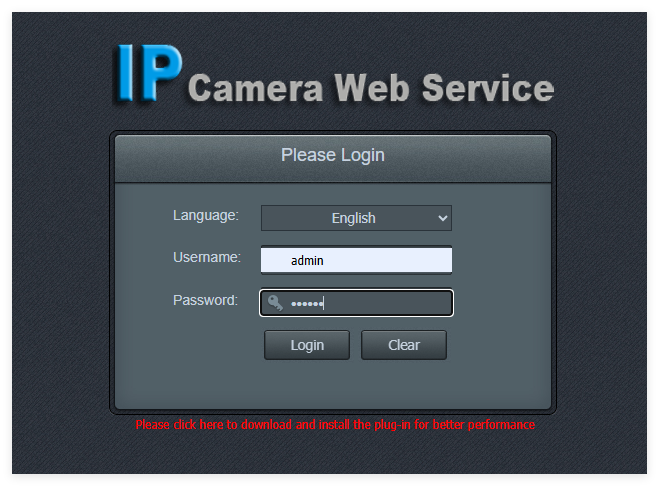
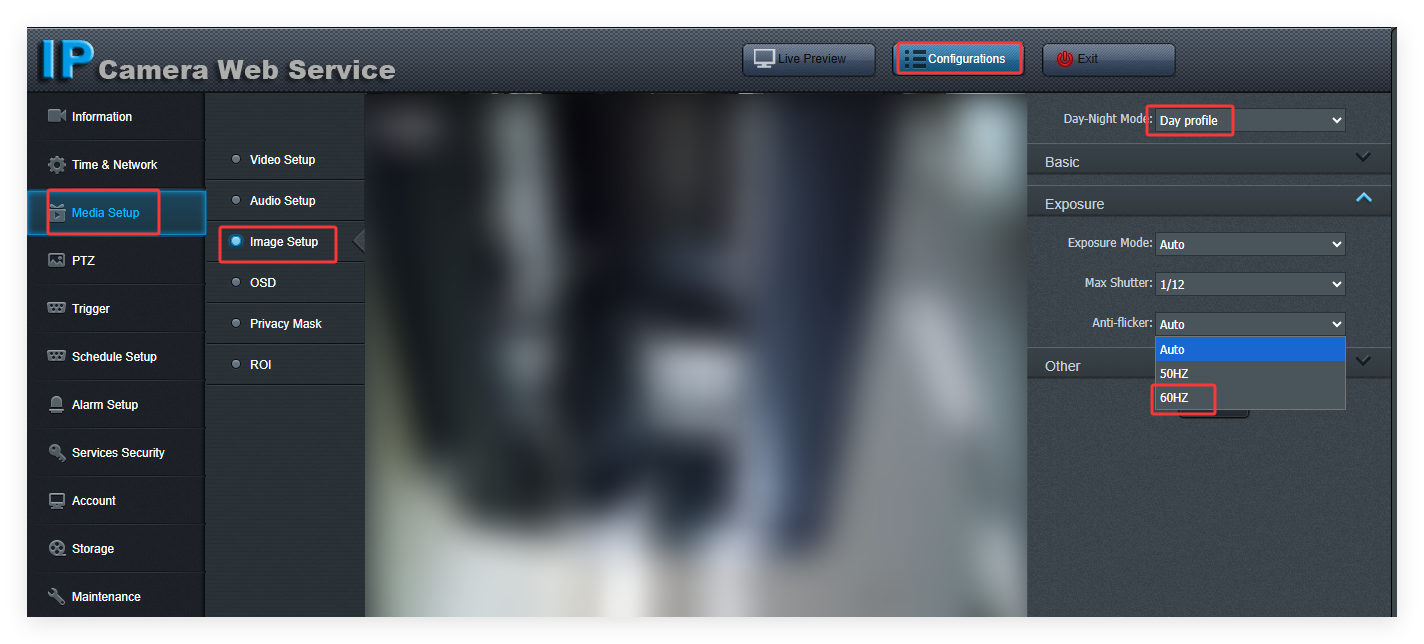
5). Choose Configuration—Media setup--Image setup, change the Day-Night mode to Day Profile, change the Anti-Flicker to 60HZ. Then change Day-Night mode back to Auto.
Tips: please only change the settings for indoor cameras. If your cameras are outdoor cameras, please change the Max shutter to 1/20 or lower one.