Support Appointment Form
Please fill out the following information so we can provide you with timely phone support.



Remote Viewing video on Mobile App Elink Defence
1. Download “Elink Defense” on your mobile phone from Apple App Store or Google play.
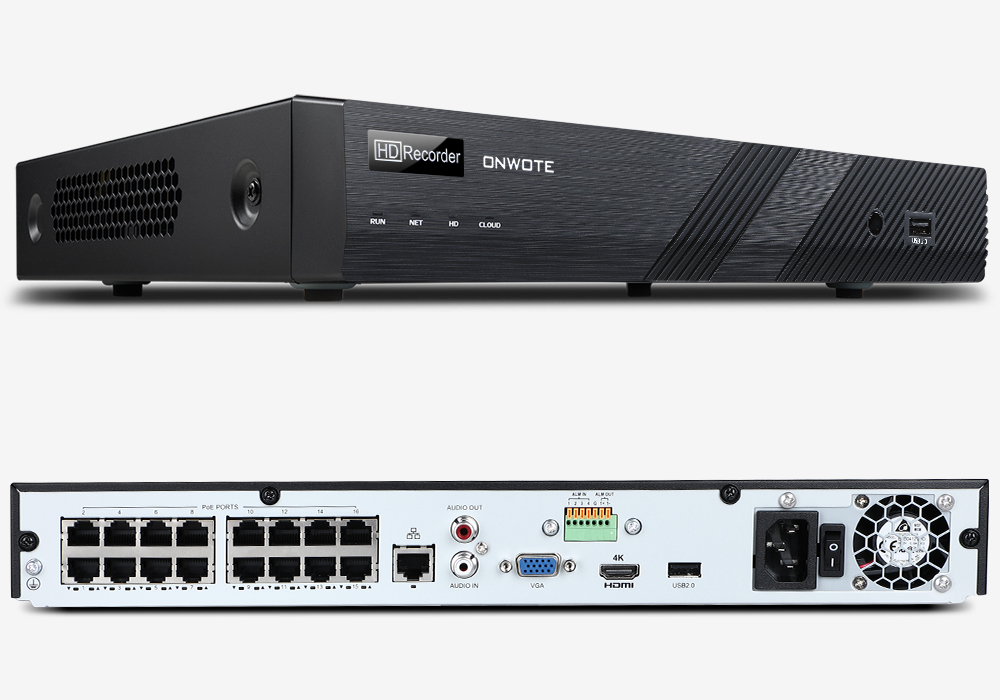
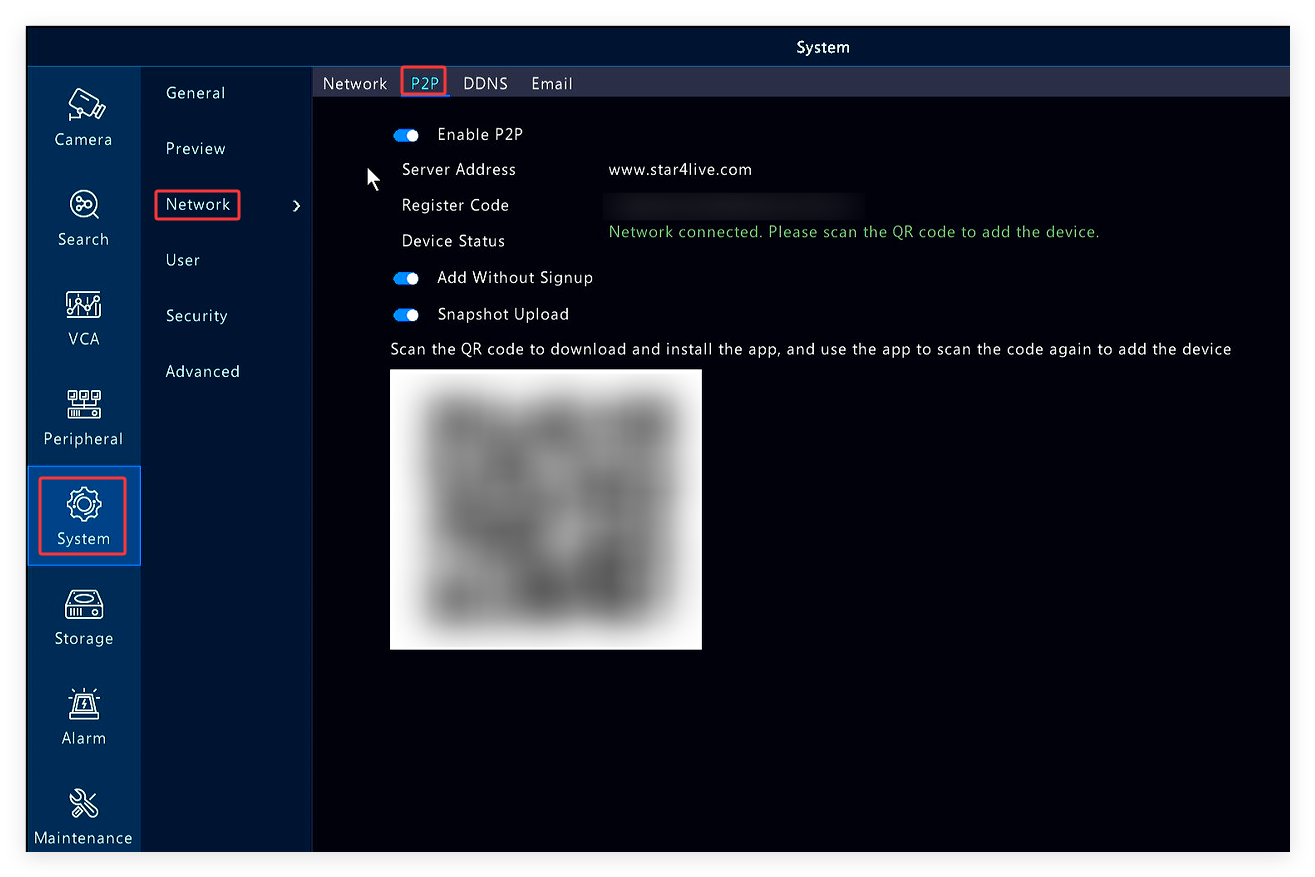
2. Find the device QR code on thebottom of the NVR. If you cannot find the QR code on the NVR, please right click your mouse on the NVR monitor, choose Menu-->System-->Network-->P2P to get theQRcode.
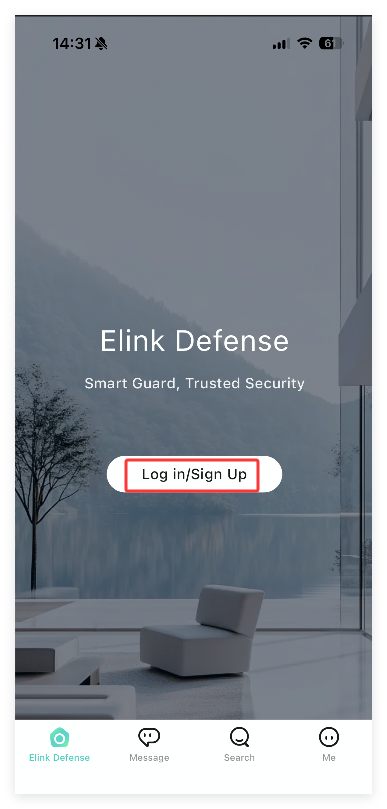
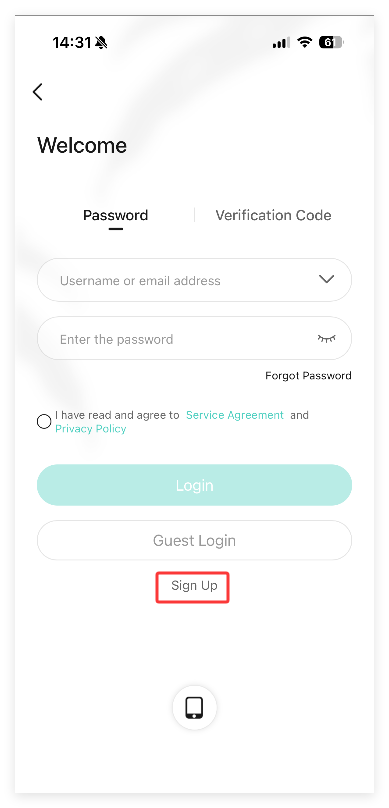
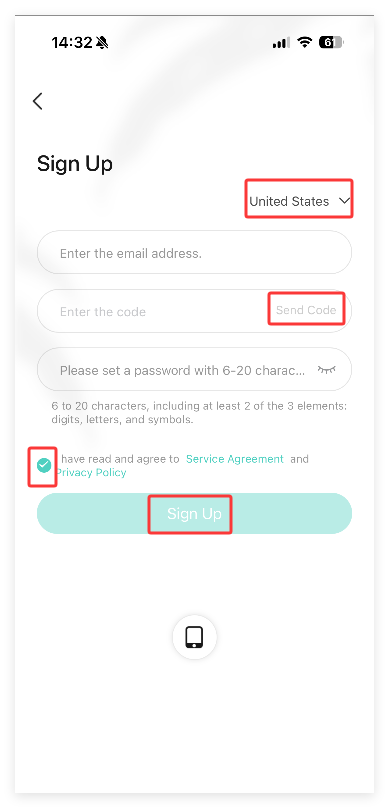
3. Open Elink, Tap on Log in/Sign up, tap Sign Up to register an account.
4. Tap on Sign up on the bottom.
5. Select Region, enter your email address, check in I have read and agree to <<Service Agreement>> and <<PrivacyPolicy>> .Tap on Send Code.
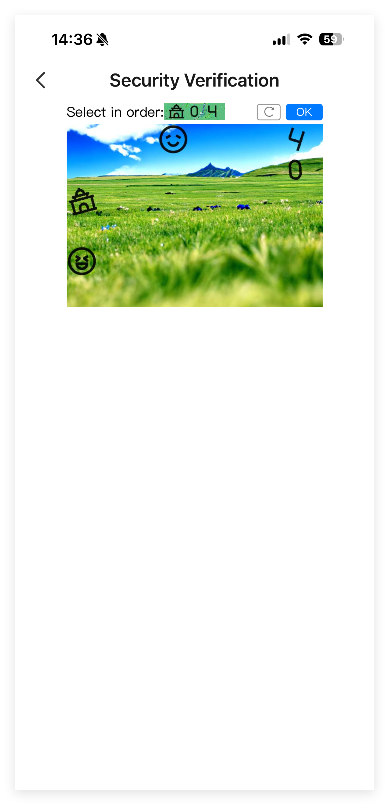
6. Select the icons in order to get a security code.
Tips: when checking notification code, please check both inbox and spam/trash folder.
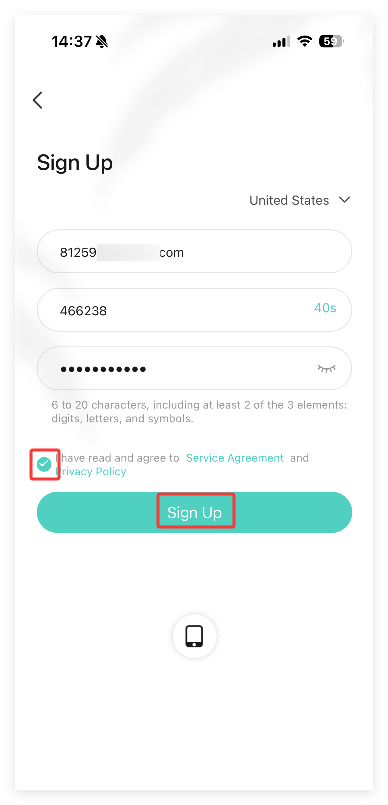
7. Enter the security code, set a password click on Sign up.
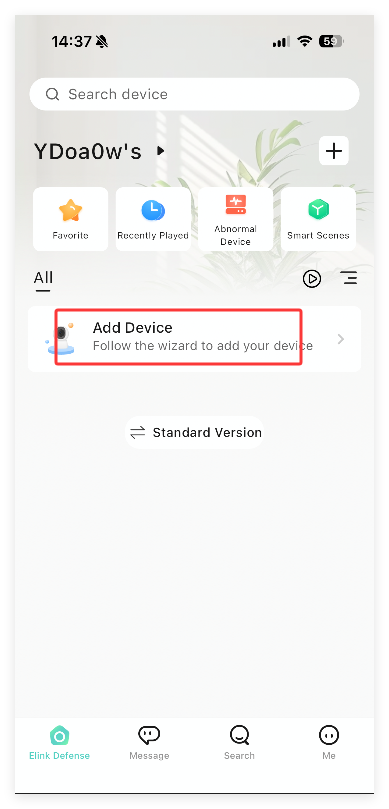
8.Tap on Add Device. Scan the device QR code (Refer to step 2 to get the QR code).
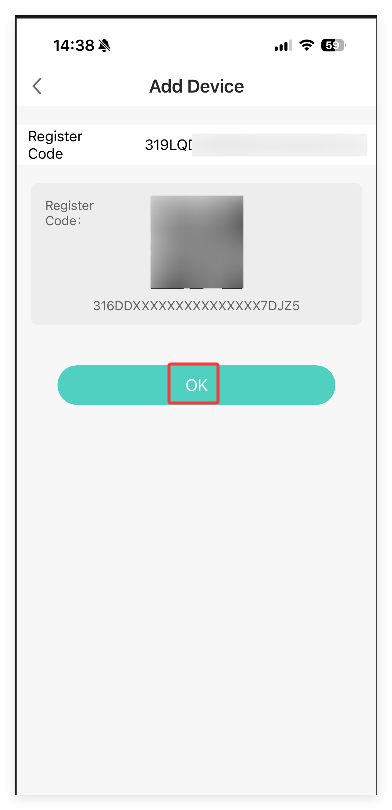
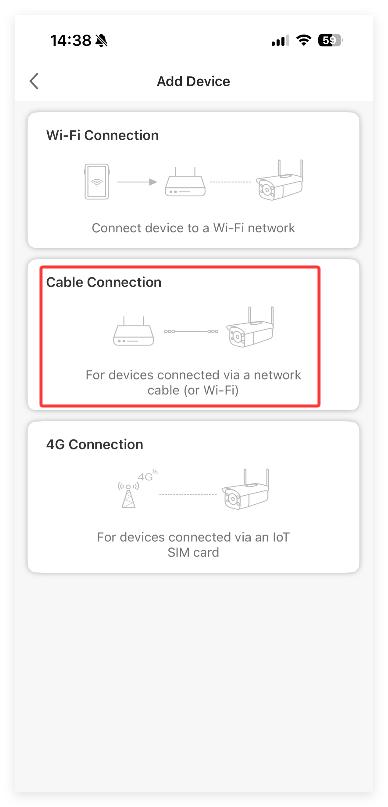
9. Tap on OK, choose Cable Connection.
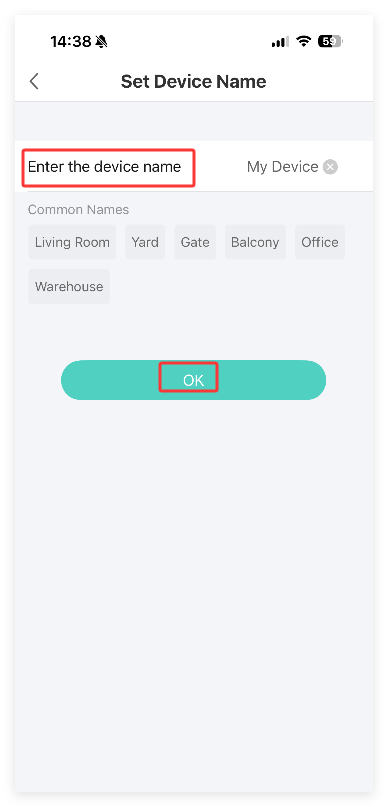
10. Set a name for the security camera system. Tap on OK.
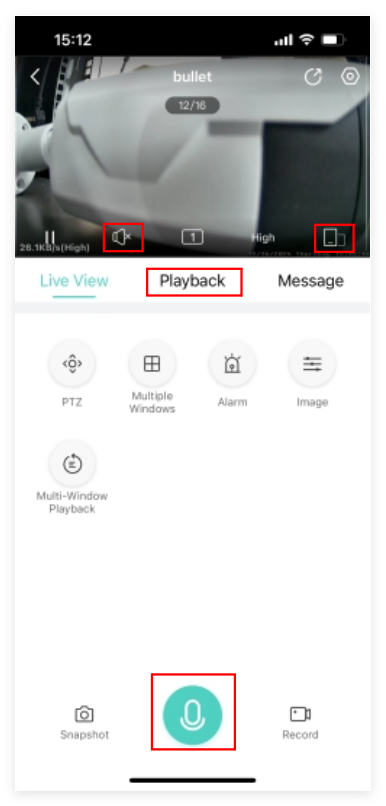
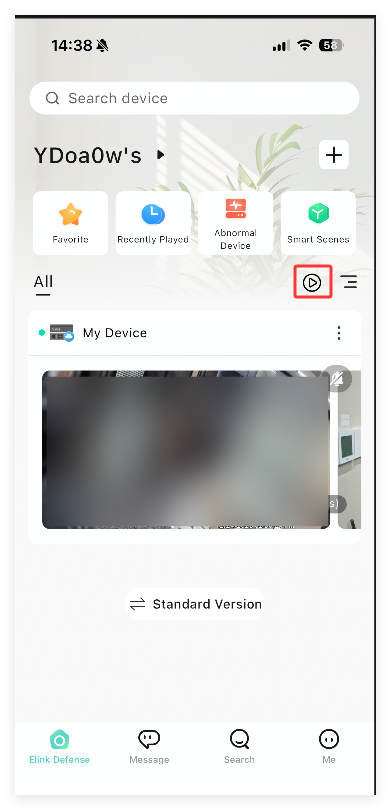
11. Tap on the camera to view video. Tap on  on the right side to view more cameras at the same time.
12. Tap on the video image, click on  to check audio. If your camera supports 2 way audio, please tap on
  the bottom to start 2 way audio.
13. Click Playback to check recordings.
14. Rotate the phone to horizontal orientation or tap  to view video in full screen.